Software Development Guidelines to Live By

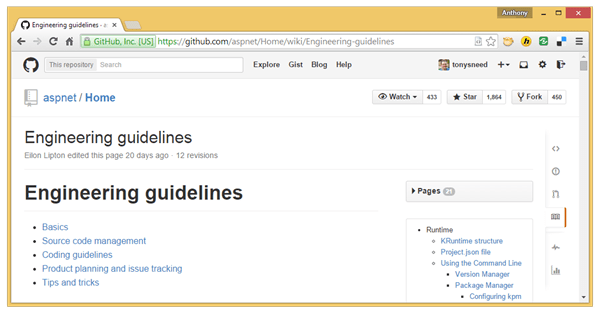
Not too long ago I posted a tweet that immediately went viral. (OK, it’s all relative – to me 66 retweets and 120 favorites is viral.)  It referred to Microsoft’s Engineering Guidelines for contributing to its open-source repository on GitHub for the next version of its web development platform, ASP.NET 5.

eng-guidelines

You may be familiar with other C# Coding Guidelines.  And generally I’m a huge fan of picking a set of guidelines, making necessary adjustments, and sticking to them as a team.  But what I appreciate about the ASP.NET 5 guidelines is that they not only cover coding guidelines, but also include other vital aspects of software development, such as source code management, product planning and issue tracking.

One of the first things listed is the guidelines for submitting pull requests and a description of how they are reviewed and approved (using an emoticon!).  Their Git branching strategy is also described, as well as the solution and project folder structure and the assembly naming pattern.  It’s notable that xUnit is used for all testing and is indicative that xUnit has now supplanted both MSTest and NUnit as the preeminent testing platform.  (In other words, just use it.)  It’s also worth noting that to use xUnit you no longer need to install a Visual Studio extension – adding the xUnit NuGet package is all you need to do for tests to show up in the Visual Studio Test Explorer.  And ReSharper has its own xUnit plugin, which you can install to use the R# test runner with xUnit tests.  Lastly, you’ll want to pay close attention to the naming guidelines for test assemblies, classes and methods, as well as appropriate unit test structure, and taking into account exception messages in your tests.

The actual coding guidelines section is rather lightweight, probably because ReSharper enforces most generally accepted rules.  (You are using ReSharper, aren’t you?!)  If you’re a company, the commercial license is well worth the price, but if you’re an individual developer and price is a concern, see if you can qualify for a free license as the author of an open source project.  One interesting thing to call out is the use of the [NotNull] parameter attribute for argument null checking, which results in null-checking code injected into the method at compile-time.  You’ll need to use it on all public methods, including constructors and property setters.

Another thing to note is the restricted use of internal types and members.  You’ll almost always want to shy away from the use of internal and instead place those types in a namespace which indicates they are primarily for internal use.  It’s not a hard and fast rule, but it’s how most modern frameworks are built.  This makes the use of the [InternalsVisibleTo] attribute unnecessary, which is good because it prevents you from having to modify a core assembly when all you want to do is add a test assembly for it.

The most controversial part of the coding guidelines is the recommendation to use the var keyword whenever possible for local type inference.  I have mixed feelings on this one, because nowadays you’re often looking at code in GitHub, or with a Git client, where you can’t just mouse over var for the return of a method call to see what the type really is.  On the other hand, there are arguments for using var whenever allowed by the compiler.  For this one, it’s really a matter of what your team prefers.

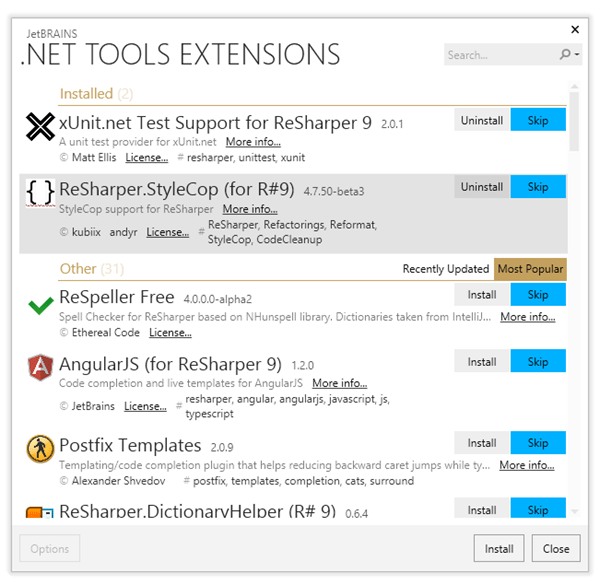
Note that guidelines are only as effective as their enforcement.  For this reason, you’ll need something like StyleCop, which has been implemented as a ReSharper extension.  First install it by selecting Extensions Manager from the ReSharper menu in Visual Studio.

resharper-stylecop-ext

Then go to ReSharper, Options, Tools, and select StyleCop.  If you see a compatibility warning message, click the the button that says, “Reset C# Code Style Options.”

resharper-stylecop-opt

After this, you’ll see StyleCop rules pop up when you’ve violated standard conventions, such as the ordering of using directives. In the example below, selecting the first option will reorder the usings appropriately.

resharper-code-cleanup

There are also facilities which allow you to select a Settings.StyleCop file, and to enable the  insertion of file headers during cleanup.

The last thing I’ll mention is that there is an unwritten rule regarding line length: lines of code should not be so long as to cause the scroll bar to appear in GitHub.  I found this to happen when exceeding 118 characters, but you may wish to limit your code to a shorter width.  Whatever length you decide on, you need a visual cue for when your code has exceeded it.  The best way I know if is to install the Visual Studio Productivity Power Tools, and insert a registry entry so that a vertical guideline will appear showing where to insert a line break.

The AspNet guidelines are a step in the right direction, but there are a bunch of other things developer should keep in mind when writing code.  In particular, when refactoring one should avoid code smells as much as possible.  These coding standards provide a nice summary, and they mention the principles of SOLID, KISS, YAGNI and DRY, as well as common design patterns.

The important thing is not to take these guidelines as written in stone, but as a starting point for formulating your own set of guidelines, which work for you, your project and your team.

Posted in Technical | Tagged , | Leave a comment

Cmder: Making the Command Line Your Best Friend

Now that I’ve jumped fully on board the Git and GitHub bandwagon, I’m spending a lot more time at the command line.  In fact, I find myself working with both Visual Studio and the command prompt simultaneously, constantly switching back and forth between the two.  The main reason is that, while Visual Studio 2013 makes a great Git client and tools such as TortoiseGit are a great help, there are some Git commands, like stash and rebase, that either aren’t supported well by the tools or are just easier to perform at the command line.  Besides, most of the online Git tutorials list Git commands.

cmder-main

DOWNLOAD Cmder here: https://github.com/cmderdev/cmder.

Another reason why I find myself more on the command line is that I’m working with ASP.NET 5, which requires the use of a command prompt for managing versions of the runtime and generally embraces command line tools as a first class citizen.  Finally, there’s Chocolatey, for easily installing tools at the command line, and, of course, PowerShell for automating actions with scripts.

As my need to work at the command line has increased, so has my frustration with the standard windows command prompt. Thankfully, I’ve run across a very nice command prompt replacement called Cmder, which combines the console emulator, ConEmu, with cmd enhancements from Clink and Git support from msysgit.  In short, it’s the one command prompt you’ll ever want to use.

If for no other reason, Cmder will win you over with its support for ^C and ^V for Copy and Paste. A list of basic commands can be found here, and you can execute a command to add file explorer integration, so that you can right-click on a directory to see “Cmder Here” in the context menu (open an administrator prompt at the Cmder installation directory and execute .\cmder.exe /REGISTER ALL).

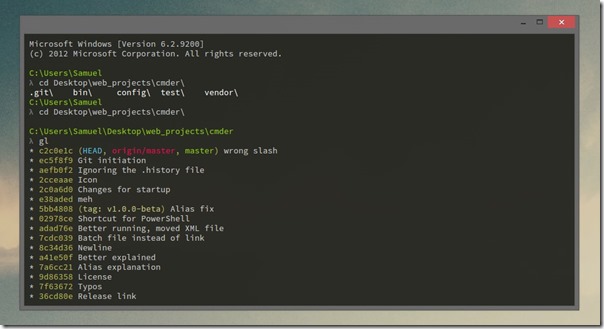
I much prefer using Cmder for all my git command-line tasks rather than opening a Git Bash prompt, because all the standard cmd.exe commands are there, and it shows both the repo location and current branch.  Here you can see I’m at a local Git repo on the master branch, then I list all the branches and checkout the develop branch.

cmder-git

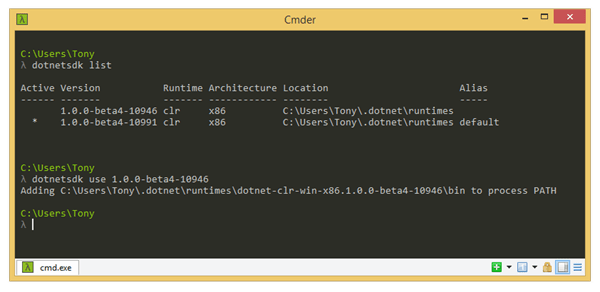
And here you can see an example of executing ASP.NET 5 commands, such as dotnetsdk (aka kvm).

cmder-asp

There are some fancy things you can do with Cmder, including basic unix commands (such as ls, mv, cp, grep, cat) and aliases, which are shortcuts you can define in a text file (located in config\aliases) for common tasks. For example, there’s a built-in alias for the Windows file explorer. Simply type .e, and an explorer window opens at your current location.

Besides its versatility, what I especially like about Cmder is the ConEmu goodness that comes with it.  It’s easy to set up predefined tasks that open additional tabs in the same Cmder window so you can switch between them by pressing Ctrl+Tab and Ctrl+Shift+Tab.  You can also assign each task a hot key. To set up tasks, just click on the dropdown arrow to the right of the green plus icon in the lower right-hand corner.

cmder-setup-tasks

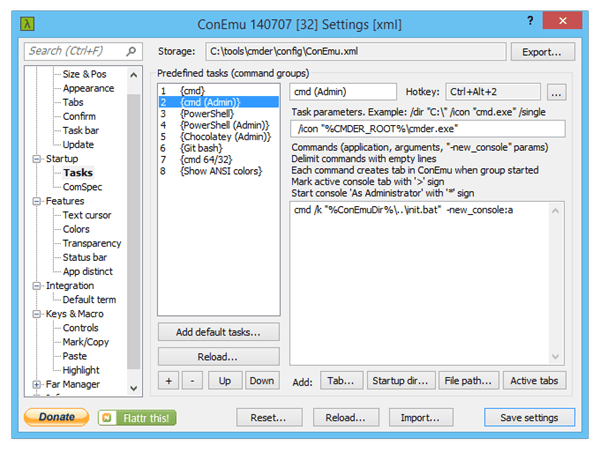
Selecting “Setup tasks…” from the menu will display a dialog for configuring ConEmu settings.  From here you can click “Add default tasks,” then tweak the commands that were inserted.  This will allow you to open new tabs for an administrator prompt, PowerShell, Chocolatey and Git Bash, among others.

cmder-tasks

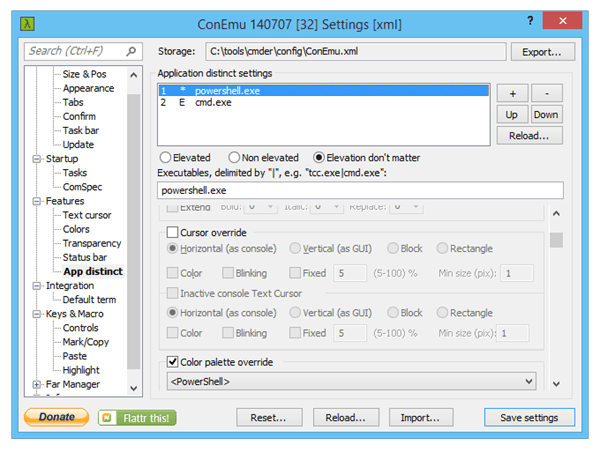
Another thing you can do at this dialog is to assign a different palette (color scheme) for different commands.  For example, it would be nice for the Admin prompt to show up with a slightly different color scheme to give you a visual queue as to which console you’re on, and it would be just as nice for the PowerShell console to light up with the standard PS colors.  To do that, you can select Features / App distinct, then add application distinct settings which override the default color palette.

cmder-app-distinct

Executing the PowerShell Admin task will, for example, open a new elevated Cmder tab colored in the same way as the standard PS prompt.

cmder-ps

Lastly, after making these customizations you’ll want to export the settings file.  If you want to use the settings file I created for my own use, you can get it here.  Better yet, you can copy the entire cmder folder to a USB stick or a cloud service, such as DropBox, where you can use it from any connected machine.  Enjoy!

Posted in Technical | Tagged , | 10 Comments

Handle Cyclical References with ASP.NET Web API 2 and MVC 6

Many ORM (object-relational mapping) tools, such as Entity Framework 6 Tools for Visual Studio 2012 & 2013, Entity Framework Power Tools, or Entity Framework Reverse POCO Generator, generate entity classes that contain cyclical references.

Note: The Web API 2 solution is still valid, but the MVC 6 solution has been deprecated, because XML formatters in ASP.NET Core have a SerializerSettings property you can use to enable it to handle cyclical references.


Download the source code, samples, and NuGet packages for this blog post:
1. AspNet WebApi 2 Helpers (Asp.Net 4 / vCurrent)

json-xml-logo-webapi2  protobuf-logo-webapi2

2. AspNet Mvc 6 Helpers (Asp.Net 5 / vNext – deprecated)

jaon-xml-logo-mvc6  protobuf-logo-mvc6


Say, for example you have two classes: Product and Category.

public partial class Product
{
    public int ProductId { get; set; }

    public string ProductName { get; set; }

    public int? CategoryId { get; set; }

    public Category Category { get; set; } // References Category
}


public partial class Category
{
    public Category()
    {
        Products = new HashSet<Product>();
    }

    public int CategoryId { get; set; }

    public string CategoryName { get; set; }

    public ICollection<Product> Products { get; set; } // References Product
}


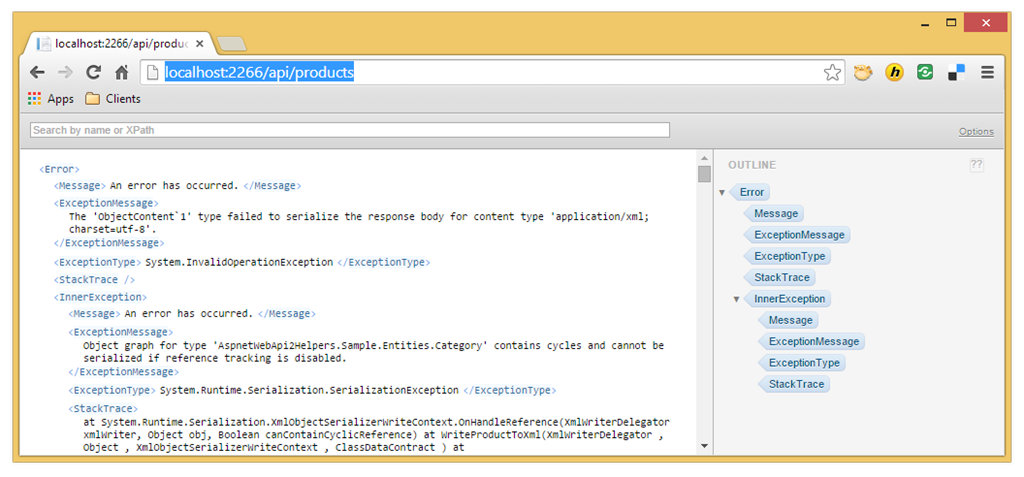
Product has a Category property, and Category has a Products property.  This is all fine, except when you attempt to return those entities from a web service, in which case the serializer will complain that the object graph for the type contains cycles and cannot be serialized.  Here you see the exception generated by the XML (Data Contract) serializer.

ser-error-xml

Here is the exception generated by Json.Net.

ser-error-json

There are a number of ways to solve this problem. First, you could eliminate the cyclical reference in entities returned by the service.  For example, just remove the Products property from Category, and the error disappears. This works if you use the DTO (data transfer objects) pattern, perhaps utilizing a class mapping tool.

If you don’t want to maintain a separate set of classes, your other alternative would be to give a hint to the serializer to serialize object references instead of values.  This can be done with attributes places on classes and/or properties.  Json.Net has a JsonObject attribute with an IsReference parameter which you can set to true.  Similarly, the DataContract attribute also has an IsReference property, but using it means you have to decorate every property you want included with a DataMember attribute. Not only is the resulting code messy, but polluting classes with serialization attributes violates the POCO (plain old CLR object) principle by coupling entities to specific infrastructure concerns. And to include them in your entities, you’d need to modify the T4 template used for the code generation, which isn’t all that easy.  Otherwise, your changes will be wiped out the next time you re-generate your entity classes.  Your task is further complicated should you decided to support another serialization format, such as Protobuf.

// Should entities be aware of serialization concerns?
[JsonObject(IsReference = true)]
[DataContract(IsReference = true)]
public partial class Product
{
    [DataMember]
    public int ProductId { get; set; }
    [DataMember]
    public string ProductName { get; set; }
    [DataMember]
    public int? CategoryId { get; set; }
    [DataMember]
    public Category Category { get; set; }
}


If you’re not using DTO’s and you’d rather not liter your POCO’s with attributes, a better approach would be to configure the serializers programmatically. And that’s what my serialization helpers are all about.

It turns out ASP.NET Web API has good support for configuring serializers on the default Json and Xml formatters, but the way you go about it varies depending on which formatter you are using.  For example, Json.Net supports setting the serializer to preserve references globally, but the DataContractSerializer requires you configure it on a per-type basis by initializing a new serializer for each type.  Protobuf-net, on the other hand, requires that you configure metadata for each type property and add it to a static RuntimeTypeModel.  What is needed is a simple consistent API for configuring formatters to handle cyclical references, both on the server and on the client.

To address this need, I created a set of NuGet packages which you can add to a project hosting ASP.NET Web API services: AspnetWebApi2Helpers.Serialization and AspnetWebApi2Helpers.Serialization.Protobuf. Then simply add a few lines of code to the WebApiConfig.Register method in the App_Start folder of your web project.

public static class WebApiConfig
{
    public static void Register(HttpConfiguration config)
    {
        // Configure formatters to handle cyclical references
        config.Formatters.JsonPreserveReferences();
        config.Formatters.XmlPreserveReferences();
        config.Formatters.ProtobufPreserveReferences(typeof(Category).Assembly);
        
        // Other code elided for clarity ...
    }
}


Neither the Json nor Xml formatters require passing types to the XxxPreserveReferences method (the API for the Xml serializer is simplified though the use of a custom media type formatter), but that the Protobuf formatter does need the types to be passed, because of a limitation with the current version of the Protobuf-net formatter.  The client-side code is similarly straightforward.

// Configure formatter to handle cyclical references
var jsonFormatter = new JsonMediaTypeFormatter();
jsonFormatter.JsonPreserveReferences();
var xmlFormatter = new CustomXmlMediaTypeFormatter();
var protoFormatter = new ProtoBufFormatter();
protoFormatter.ProtobufPreserveReferences();

// Select a formatter
MediaTypeFormatter formatter = jsonFormatter;
var products = productsResponse.Content.ReadAsAsync<List<Product>>(new[] { formatter }).Result;


Lastly, I’ve created NuGet packages which target ASP.NET MVC 6 for use with ASP.NET 5 (vNext) and Visual Studio 2015.  The Json and Xml serialization helpers target both the full and core versions of the CLR that are package-deployable and cloud-friendly. (The MVC 6 Protobuf serialization helper depends on Protobuf-net, which does not currently support CLR Core).  Here is a Startup class which includes configuration of MvcOption by using the XxxPreserveReferences extension methods.

public class Startup
{
    public void ConfigureServices(IServiceCollection services)
    {
        // Configure formatters to handle cyclical references
        services.AddMvc()
            .Configure<MvcOptions>(options =>
            {
                options.JsonPreserveReferences();
                options.XmlPreserveReferences();
                #if ASPNET50
                options.ProtobufPreserveReferences(typeof(Product).Assembly);
                #endif
            });
        services.AddWebApiConventions();
    }

    public void Configure(IApplicationBuilder app)
    {
        app.UseMvc(routes =>
            routes.MapWebApiRoute("DefaultApi", "api/{controller}/{id?}"));
        app.UseWelcomePage();
    }
}


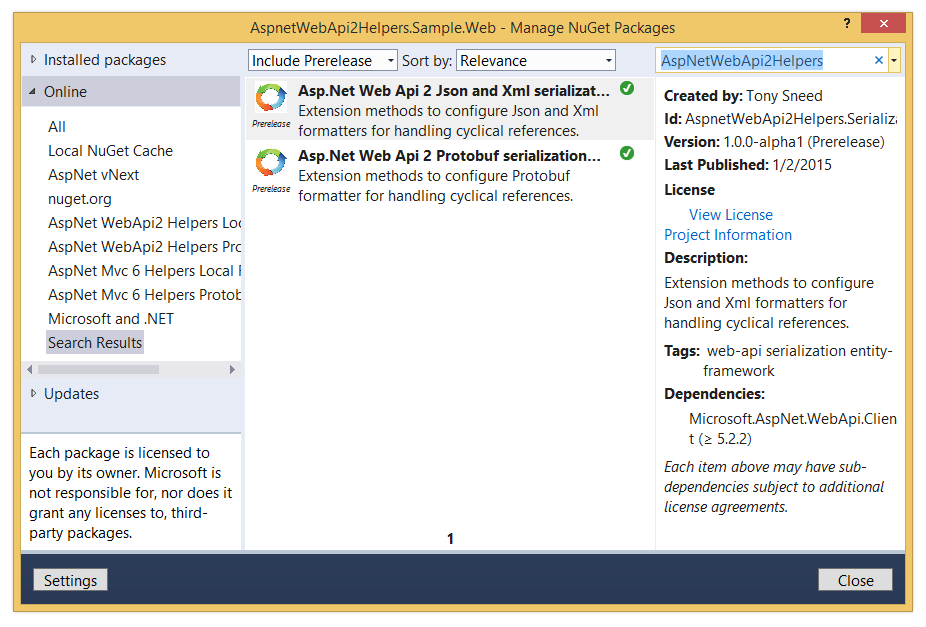
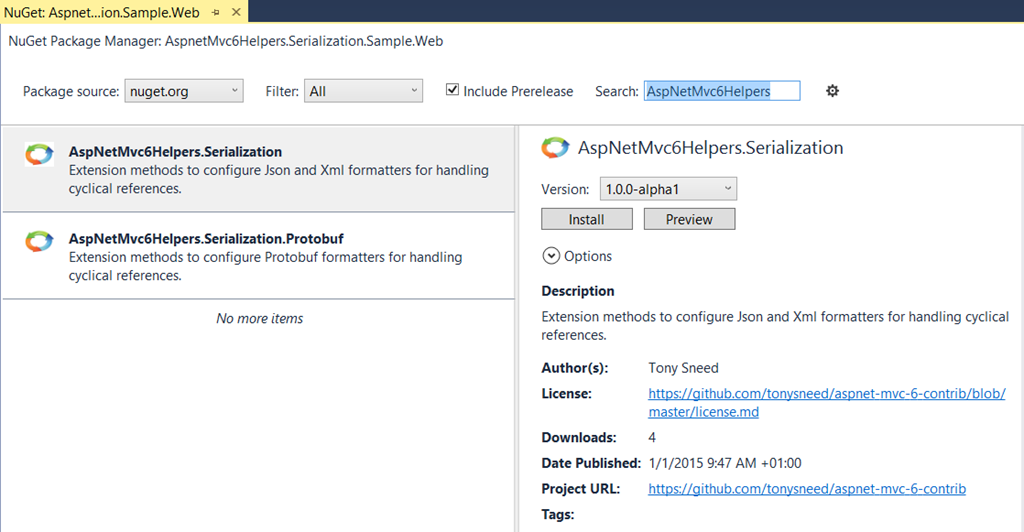
I’ve uploaded all the serialization helper packages to the NuGet Gallery (at this time the versions are pre-release).  To use them, simply all them to your projects using the NuGet Package Manager – just remember to select “Include Prerelease” and search for AspNetWebApi2Helpers.

AspNetWebApi2Helpers

For ASP.NET MVC 6 (vNext), check “Include Prerelease” and search for AspNetMvc6Helpers.

AspNetMvc6Helpers

To download the source code and samples, please visit the GitHub repositories for AspNet WebApi 2 Helpers (Asp.Net 4 / vCurrent) and AspNet Mvc 6 Helpers (Asp.Net 5 / vNext – deprecated).

Enjoy!

Posted in Technical | Tagged , , | 5 Comments

MyGet: Continuous Integration for the Rest of Us

By this time, most .NET developers are familiar with NuGet.  It used to be that if you wanted to use some part of .NET, such as Entity Framework, you would add a reference to your project pointing to some DLL in the .NET Framework Class Library (FCL).  Those days are loooong gone.  Nowadays, if you want to use Entity Framework you must get it from NuGet, because it’s not even included in the FCL anymore.  The reason is simple: product teams at Microsoft can push out updates in much shorter cycles using NuGet than they ever could do with the .NET Framework itself.

So why not use NuGet to distribute libraries to other parts of your organization?  This process is straightforward and well-documented.  But what is not so well documented is how to generate NuGet packages and push them up to a feed whenever you check code into your repository and kick off a Continuous Integration build.  Fundamentally it’s not that difficult.  The process entails writing a build script that executes pack and push commands using the NuGet command line tool, which you can install using either a bootstrapper or Chocolatey.  If you are using Team Foundation Build Server, you can create a build definition to execute these NuGet commands, or for smaller projects you can use a cloud-hosted build controller with Visual Studio Online.

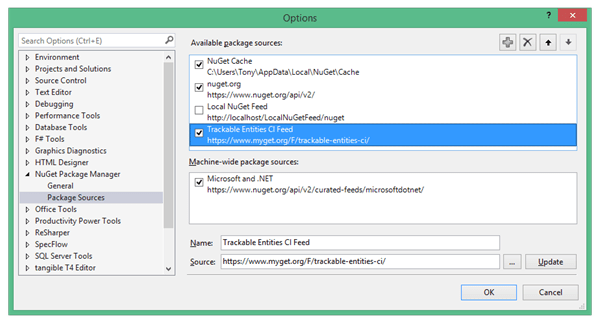
But what if you’re authoring an open-source project on GitHub or BitBucket and want the benefits of a build server with NuGet integration?  That’s where MyGet comes in!  For example, my Trackable Entities project is hosted on GitHub and whenever I push to the repo, MyGet kicks off a build and publishes all the packages to a CI NuGet feed. To get those packages, you need to add a NuGet package source pointing to the feed (in Visual Studio select Tools, Options, NuGet Package Manager, Package Sources).

trackable-ci-feed

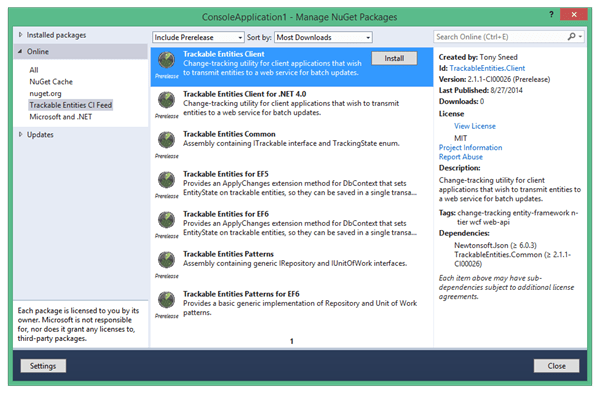
After adding the CI package feed from MyGet, you’ll see the latest packages in the dialog that appears when you select Manage NuGet Packages after right-clicking on the project in the Visual Studio solution explorer.  These will show up when you select “Include Prerelease” from the drop down.

trackable-ci-packages

MyGet provides a hosted NuGet server with continuous integration build services that hook into several popular online Git repositories, including GitHub, BitBucket, CodePlex, and Visual Studio Online.  You can even configure builds to run unit tests and push releases to the public NuGet package gallery.  And for public feeds using less than 500 MB, the service is free.

I implemented continuous integration for my Trackable Entities open-source project using MyGet and thought it might be useful to share my experience here.  MyGet’s build services, while still in beta, are well documented, and excellent tech support is also provided.  The most reliable path for me was to write a custom build script containing NuGet commands for generating NuGet packages.  Along the way, I discovered some things about NuGet I didn’t know before.  In particular, I found out how to use tokenized nuspec files in conjunction with csproj files, which allows setting the NuGet package version based on the build version.  What you want to do is create a nuspec file with the same name and in the same directory as a csproj file.  The path to the csproj file is passed to the NuGet pack command, but the $PackageVersion$ token is used in the nuspec file to pull in the NuGet PackageVersion parameter.  For example, here is the nuspec file for my TrackableEntities.Client NuGet package. Notice how the $PackageVersion$ token is also used for the dependency on TrackableEntities.Common.  This way, all the package versions for a single build stay in sync, which is nice.

<?xml version="1.0" encoding="utf-8"?>

<package xmlns="http://schemas.microsoft.com/packaging/2012/06/nuspec.xsd">

    <metadata>

        <id>TrackableEntities.Client</id>

        <version>$PackageVersion$</version>

        <title>Trackable Entities Client</title>

        <authors>Tony Sneed</authors>

        <owners>Tony Sneed</owners>

        <licenseUrl>http://trackable.codeplex.com/license</licenseUrl>

        <projectUrl>http://trackable.codeplex.com</projectUrl>

        <iconUrl>http://tonysneed.com/images/trackable/tracking-small.png</iconUrl>

        <requireLicenseAcceptance>false</requireLicenseAcceptance>

        <description>Change-tracking utility for client applications that wish to transmit entities to a web service for batch updates.</description>

        <language>en-US</language>

        <tags>change-tracking entity-framework n-tier wcf web-api</tags>

        <dependencies>

            <group targetFramework=".NETPortable0.0-net45+sl5+win8+windowsphone8">

                <dependency id="Newtonsoft.Json" version="6.0.3" />

                <dependency id="TrackableEntities.Common" version="$PackageVersion$" />

            </group>

        </dependencies>

    </metadata>

</package>

Here is the build script with an install command for restoring NuGet packages and compiling the project, followed by the pack command for generating the NuGet package and setting the PackageVersion.

REM Set Variables:
set config="%Configuration%"
if %config% == "" (set config=Release)
set version="%PackageVersion%"

REM Restore:
Source\.nuget\nuget.exe install Source\TrackableEntities.Client\packages.config -OutputDirectory Source\packages -NonInteractive

REM Build:
mkdir Build\Source\Output\TrackableEntities.Client\portable-net45+sl5+win8+windowsphone8
%WINDIR%\Microsoft.NET\Framework\v4.0.30319\msbuild Source\TrackableEntities.Client\TrackableEntities.Client.csproj /p:Configuration="%config%" /m /v:M /fl /flp:LogFile=Build\Source\Output\TrackableEntities.Client\portable-net45+sl5+win8+windowsphone8\msbuild.log;Verbosity=Normal /nr:false

REM Package:
Source\.nuget\nuget.exe pack "Source\TrackableEntities.Client\TrackableEntities.Client.csproj" -symbols -o Build\Source\Output\TrackableEntities.Client\portable-net45+sl5+win8+windowsphone8 -p Configuration=%config%;PackageVersion=%version%

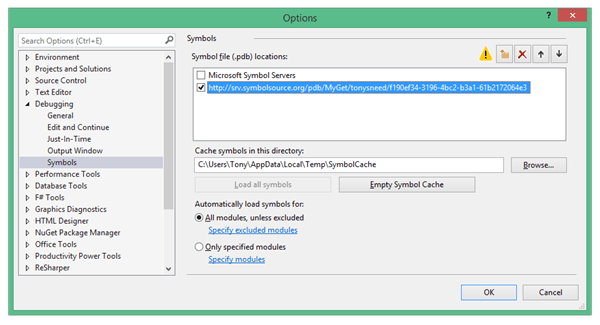
Notice the presence of the –symbols parameter, which produces a NuGet package containing just the source and symbols (pdf files) for the project, which are then pushed by MyGet to the symbols server at SymbolSource.org, provided you set up MyGet to push packages to SymbolSource.  This allows developers using the CI NuGet packages to debug the library and step into code.  To get this to work, you’ll need to add the correct symbol file location (http://srv.symbolsource.org/pdb/MyGet/tonysneed/f190ef34-3196-4bc2-b3a1-61b2172064e3) and specify a local symbols cache on your machine.  In addition you’ll need to go to Tools, Options, Debugging, General, then check “Enable source server support” and uncheck “Require source files to exactly match the original version” (which is needed because the checksums will differ).

trackable-ci-symbols

What’s nice about this story is that it enables developers using a NuGet package to easily step through the source code while debugging, while matching it to a specific NuGet package version and commit to a Git repository.  You’ll want to pay close attention to the Modules window, which you can view while debugging by selecting Debug, Windows, Modules.  Make sure that the debug symbols are loaded from the correct location set for the symbols cache.  If not, you can disable automatic symbol loading, then load the symbols manually.

Thanks to MyGet, connecting CI builds to a NuGet feed and a symbol server is now attainable for the ordinary developer. Enjoy!

Posted in Technical | Tagged , | Leave a comment

EF 6.x Code-First and Model-First with Trackable Entities 2.1

Until now Trackable Entities has required the Entity Framework Power Tools to reverse engineer Code-First model classes from an existing database.  But not long ago the Entity Framework team released the EF 6.x Tools for Visual Studio 2012 and 2013, so that you can use the same Entity Data Model wizard to generate context and entity classes using either the Code First or Model first approaches.  The advantage of the consolidated designer is that you can pick and choose which tables you want, versus generating classes for all the tables in your database – which could take an inordinate amount of time if your database has a lot of tables.

trackable-tools

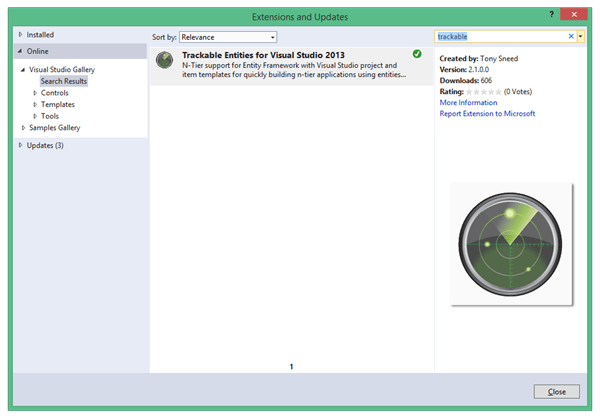
When the tools were first released, the ability to customize the T4 templates used for generating Code First classes was undocumented.  However, the team eventually published an article on how to customize the templates, and I was able to include customized T4 templates in the Visual Studio samples and templates for Trackable Entities v2.1.  You can install Trackable Entities right from within Visual Studio, by selecting Tools, Extensions and Updates, and then searching for “trackable” in the Online Visual Studio Gallery.

trackable-online-gallery

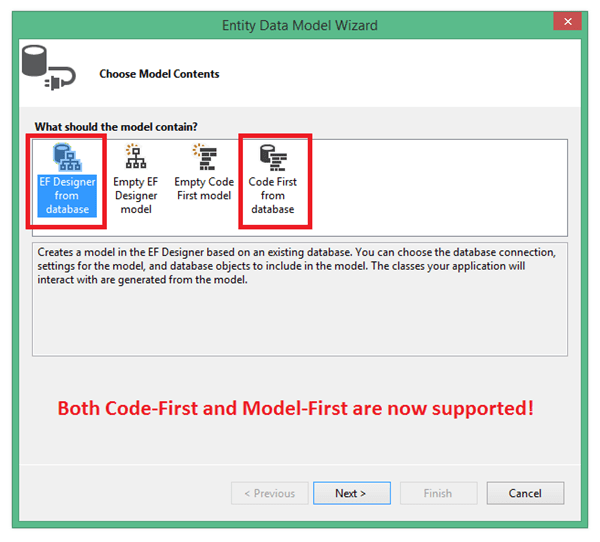
Once you’ve installed Trackable Entities, simply create a new project and select either “Trackable Web API Application” or “Trackable WCF Service Application” from the Trackable category under Visual C#. (You can also select “Trackable Web API Application with Repository and Unit of Work”.)  Then right-click the Service.Entities project and select “Add New Item” from the context menu.  From the Data category select “ADO.NET Entity Data Model,” type a name for the model and click Add.  You will be presented with the Entity Data Model Wizard, where you can select an option to either create Code First classes or add an EF Designer model.

trackable-edm-choose

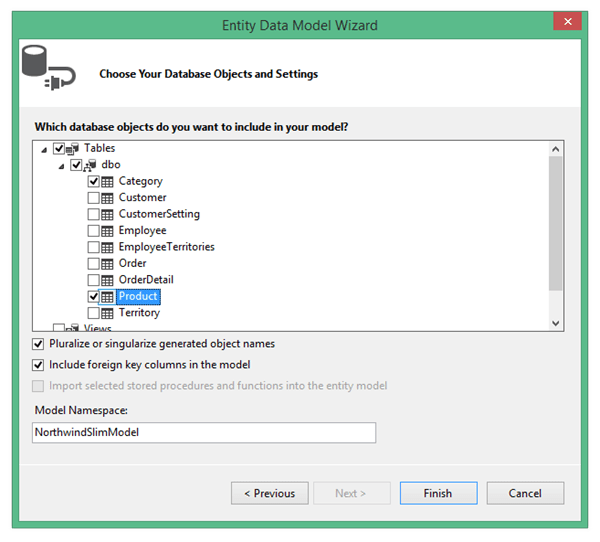
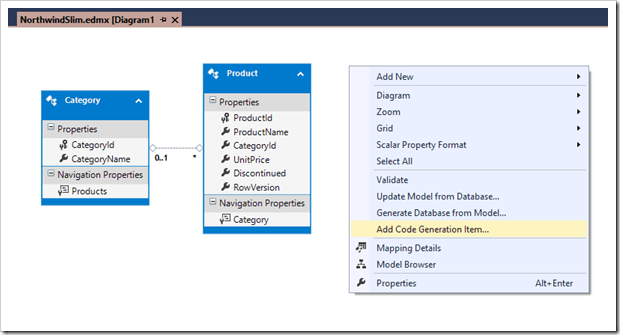
From there you can select which database objects to include.  If you chose the “Code First from Database” option, you’ll get context and model classes for the tables you selected.  If, on the other hand, you selected “EF Designer from Database,” you’ll get an Entity Data Model designer (backed by an EDMX file), with entities and associations representing a conceptual model of your database.  This is often referred to as the Model-First (or Database First) approach.

Trackable Entities v2.1 supports this strategy by providing a set of custom T4 templates for generating client and service entities based on the Entity Data Model depicted in the diagram.  Many developers prefer Model-First over Code-First because it is relatively easy to keep the model in sync with the database by right-clicking on the diagram and selecting “Update Model from Database.”  To generate trackable service entities from the EDM diagram, simply right-click on the design surface of the model and select “Add Code Generation Item”.

trackable-model-first-code-gen

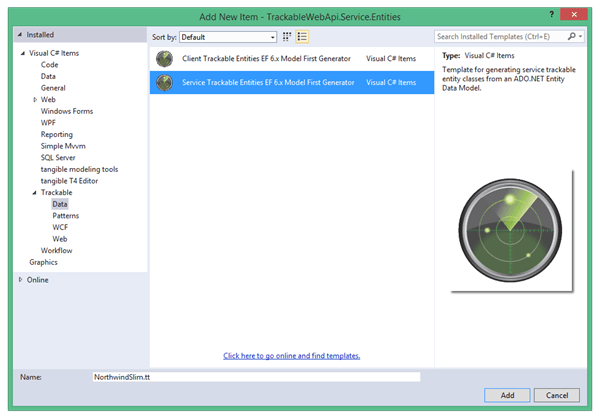
From there you can select which database objects to include.  Then expand the Trackable, Data category and select “Service Trackable Entities EF 6.x Model First Generator”. For the name enter the same model name you specified when adding the EDM to your project.

trackable-model-first-generator

You will then be prompted to overwrite the existing .tt files in your project.  Respond “Yes” to overwrite the files, and you’ll get model classes which are customized to work with trackable entities.  These are identical to those generated for Code First using either the EF Power Tools or the EF 6.x Tools for VS.  For example, the Product entity appears as follows:

[JsonObject(IsReference = true)]

[DataContract(IsReference = true, Namespace = "http://schemas.datacontract.org/2004/07/TrackableEntities.Models")]

public partial class Product : ITrackable

{

    [DataMember]

    public int ProductId { get; set; }

    [DataMember]

    public string ProductName { get; set; }

    [DataMember]

    public Nullable<int> CategoryId { get; set; }

    [DataMember]

    public Nullable<decimal> UnitPrice { get; set; }

    [DataMember]

    public bool Discontinued { get; set; }

    [DataMember]

    public byte[] RowVersion { get; set; }


    [DataMember]

    public Category Category { get; set; }


    [DataMember]

    public TrackingState TrackingState { get; set; }

    [DataMember]

    public ICollection<string> ModifiedProperties { get; set; }

    [JsonProperty, DataMember]

    private Guid EntityIdentifier { get; set; }

}

Because the ADO.NET Entity Data Model designer is not compatible with the Client.Entities project, which is a Portable Class Library, you’ll need to add a .NET 4.5 Class Library project to the solution to generate client-side entities.  Simply repeat the process of adding a code generation item, but instead select “Client Trackable Entities EF 6.x Model First Generator”.  From the Client.Entities project you can then link to the model classes by right-clicking the project, then selecting Add Existing Item and choosing “Add As Link”.

Trackable entities contain three additional properties which enable tracking entity change-state across service boundaries: TrackingState (Unchanged, Modified, Added, Deleted), ModifiedProperties (a list of properties with changed values – used for partial table updates), and EntityIdentifier (a Guid used for correlating updated entities with original entities, so that changes can be merged back).  On the client, a ChangeTrackingCollection<T> automatically sets TrackingState when entities are added, modified or deleted, and caches deleted entities so they can be retrieved using the GetChanges method, along with other changed entities in the object graph – including child and reference entities.

A Portable Class Library is used for client entities, and for the client Nuget package, so that they can be used with any client, including WPF, Silverlight, Windows Store (tablet), Windows Phone, iOS and Android (via Xamarin).  And the libraries are designed in such a way that the client remains completely ignorant of how entities are persisted by the service.  Both XML and JSON serialization formats are supported, and there are mutli-project templates for both WCF and ASP.NET Web API, which allow you to implement an n-tier solution in a fraction of the time you would otherwise spend.  In addition, the templates implement best practices for stateless services which persist changes using the async capabilities of Entity Framework and WCF or Web API.  There is an ApplyChanges extension method on DbContext which walks the entire object graph in all directions to inform the EF context of changes, which are all persisted in a single transaction when SaveChanges is called.

Posted in Technical | Tagged , , , | 10 Comments

Real-World MVVM with Entity Framework and ASP.NET Web API

I just completed a sample application using Simple MVVM Toolkit together with Trackable Entities to build a real-world N-Tier solution with a WPF client and portable POCO entities that are automatically change-tracked and sent to an ASP.NET Web API service that uses Entity Framework to perform asynchronous CRUD operations (Create, Retrieve, Update, Delete). The sample includes a Windows Presentation Foundation client, but the toolkit has a Visual Studio template for building a multi-platform client with portable view models that are shared across WPF, Silverlight, Windows Phone, Windows Store, iOS and Android.

Download the Simple MVVM Trackable Entities sample application here.

The nice thing about this sample is that it demonstrates how to build a complete end-to-end solution.  Client-side entities don’t care if they are sent to a WCF or Web API service and are marked up for serialization using both [DataContract] and [JsonObject] attributes.  Both WCF and Json.NET serializers accept attribute-free classes, but the attributes are included in order to handle cyclic references. The WPF client binds views to view models which expose entities as properties, and because ChangeTrackingCollection<T> extends ObservableCollection<T>, it is data-binding friendly.

View models have methods which call GetChanges on the change tracker, so that only changed entities are sent to the service.  GetChanges traverses the object graph in all directions, including 1-1, M-1, 1-M and M-M relations, and returns only entities which have been added, modified or deleted, saving precious bandwidth and improving performance.  Service operations return inserted and updated entities back to the client, which include database-generated values, such as identity and concurrency tokens.  View models then invoke MergeChanges on the change tracker to update existing entities with current values.

  1. public async void ConfirmSave()
  2. {
  3.     if (Model == null) return;
  4.     try
  5.     {
  6.         if (IsNew)
  7.         {
  8.             // Save new entity
  9.             var createdOrder = await _orderServiceAgent.CreateOrder(Model);
  10.             Model = createdOrder;
  11.         }
  12.         else
  13.         {
  14.             // Get changes, exit if none
  15.             var changedOrder = ChangeTracker.GetChanges().SingleOrDefault();
  16.             if (changedOrder == null) return;
  17.  
  18.             // Save changes
  19.             var updatedOrder = await _orderServiceAgent.UpdateOrder(changedOrder);
  20.             ChangeTracker.MergeChanges(updatedOrder);
  21.  
  22.             // Unsubscribe to collection changed on order details
  23.             Model.OrderDetails.CollectionChanged -= OnOrderDetailsChanged;
  24.  
  25.             // End editing
  26.             EndEdit();
  27.         }
  28.  
  29.         // Notify view of confirmation
  30.         Notify(ResultNotice, new NotificationEventArgs<bool>(null, true));
  31.     }
  32.     catch (Exception ex)
  33.     {
  34.         NotifyError(null, ex);
  35.     }
  36. }

The ConfirmSave method is from the OrderViewModelDetail class, which exposes a ResultNotice event to facilitate communication with OrderDetailView.xaml.  The code-behind for OrderDetailView handles ResultNotice by setting the view’s DialogResult, which closes the dialog and sets the result to true for confirmation or false for cancellation.

  1. public partial class OrderDetailView : Window
  2. {
  3.     public OrderDetailView(Order order)
  4.     {
  5.         ViewModel = (OrderViewModelDetail)DataContext;
  6.         ViewModel.Initialize(order);
  7.         ViewModel.ErrorNotice += OnErrorNotice;
  8.         ViewModel.ResultNotice += OnResultNotice;
  9.     }
  10.  
  11.     public OrderViewModelDetail ViewModel { get; private set; }
  12.  
  13.     private void OnResultNotice(object sender, NotificationEventArgs<bool> eventArgs)
  14.     {
  15.         DialogResult = eventArgs.Data;
  16.     }
  17.  
  18.     private void OnErrorNotice(object sender, NotificationEventArgs<Exception> eventArgs)
  19.     {
  20.         MessageBox.Show(eventArgs.Data.Message, “Error”);
  21.     }
  22.  
  23.     private void OnUnloaded(object sender, RoutedEventArgs e)
  24.     {
  25.         ViewModel.ErrorNotice -= OnErrorNotice;
  26.         ViewModel.ResultNotice -= OnResultNotice;
  27.     }
  28. }

I enjoyed putting the sample together because it gave me the opportunity to revisit my MVVM toolkit and soak up some of the goodness I put into it.  For example, the ViewModelDetail base class implements IEditableObject by cloning and caching the entity when BeginEdit is called, and pointing the Model property of the view model to the cached entity.  Because the user is working off a separate entity, the UI showing the original entity does not reflect changes the user is making until EndEdit is called, when values are copied from the working copy back to the original.  CancelEdit simply points Model to the original and discards the edited version.  The view model base class also includes IsEditing and IsDirty properties, which are updated appropriately.

I also took advantage of support for async and await in .NET 4.5. For example, CustomerServiceAgent provides an async GetCustomers method, which is called by the view model to bind a list of customers to a combo box.  This transparently marshals code following await onto the UI thread to update the contents of the combo box.

  1. public class CustomerServiceAgent : ICustomerServiceAgent
  2. {
  3.     public async Task<IEnumerable<Customer>> GetCustomers()
  4.     {
  5.         const string request = “api/Customer”;
  6.         var response = await ServiceProxy.Instance.GetAsync(request);
  7.         response.EnsureSuccessStatusCode();
  8.         var result = await response.Content.ReadAsAsync<IEnumerable<Customer>>();
  9.         return result;
  10.     }
  11. }

Tinkering with XAML for the views allowed me the opportunity to solve some common challenges.  For example, the customer orders view has a pair of data grids that need to function in concert as master-detail, with the first grid showing orders for a selected customer, and the second grid showing details for the selected order.  I had to bind SelectedIndex on the orders grid to the SelectedOrderIndex property on the view model, and bind SelectedItem to the SelectedOrder property.  I got the details grid to synchronize by binding ItemsSource to SelectedOrder.OrderDetails.

Another interesting problem was how to populate a Products data grid combo box column in the details grid on OrderDetailView.xaml.  That required placing a Products property on the view model and using a RelativeSource binding on the ElementStyle and EditingElementStyle properties of the combo box column.

  1. <DataGrid Grid.Row=2 Grid.Column=0 Height=140 VerticalAlignment=Top
  2.           ItemsSource=“{Binding Model.OrderDetails} AutoGenerateColumns=False Margin=0,10,0,0 IsTabStop=True TabIndex=3 >
  3.     <DataGrid.Columns>
  4.         <DataGridTextColumn Binding=“{Binding OrderDetailId} ClipboardContentBinding=“{x:Null} Header=OrderDetail Id/>
  5.         <DataGridComboBoxColumn SelectedValueBinding=“{Binding ProductId}
  6.                             SelectedValuePath=ProductId
  7.                             DisplayMemberPath=ProductName
  8.                             Header=Product Width=150>
  9.             <DataGridComboBoxColumn.ElementStyle>
  10.                 <Style TargetType=ComboBox>
  11.                     <Setter Property=ItemsSource Value=“{Binding RelativeSource={RelativeSource FindAncestor, AncestorType={x:Type Window}}, Path=DataContext.Products}/>
  12.                     <Setter Property=IsReadOnly Value=True/>
  13.                 </Style>
  14.             </DataGridComboBoxColumn.ElementStyle>
  15.             <DataGridComboBoxColumn.EditingElementStyle>
  16.                 <Style TargetType=ComboBox>
  17.                     <Setter Property=ItemsSource Value=“{Binding RelativeSource={RelativeSource FindAncestor, AncestorType={x:Type Window}}, Path=DataContext.Products}/>
  18.                 </Style>
  19.             </DataGridComboBoxColumn.EditingElementStyle>
  20.         </DataGridComboBoxColumn>
  21.         <DataGridTextColumn Binding=“{Binding UnitPrice, StringFormat=\{0:C\}} ClipboardContentBinding=“{x:Null} Header=Unit Price/>
  22.         <DataGridTextColumn Binding=“{Binding Quantity} ClipboardContentBinding=“{x:Null} Header=Quantity/>
  23.         <DataGridTextColumn Binding=“{Binding Discount, StringFormat=\{0:F\}} ClipboardContentBinding=“{x:Null} Header=Discount/>
  24.     </DataGrid.Columns>
  25. </DataGrid>

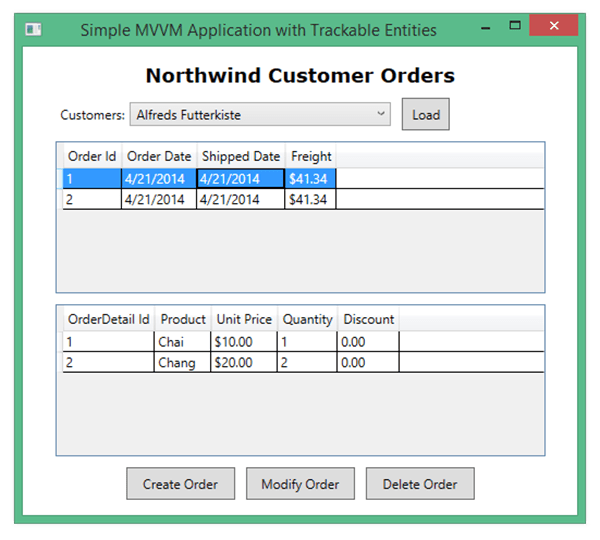
Here is a screen shot of the main view, which has a “Load” button for retrieving customers.  Selecting a customer from the combo box will retrieve the customer’s orders with details.

mvvm-trackable-main

Clicking “Create Order” will bring up the order detail view with a new Order. Clicking “Modify Order” will open the order detail view with the selected Order.  Clicking “Delete Order” will prompt the user to confirm the delete, then pass the id for the selected order to the delete operation on the Orders controller of the Web API service.

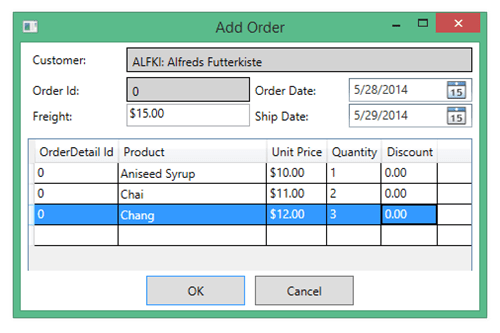
Here is a screen shot of the Add Order dialog.  The user interacts with the order details grid to add, modify or remove details from the order.  Clicking OK will pass a new or existing order to the Orders controller, together with new or changed details.  Because orders and details are change-tracked, they can be sent to a service for persistence in one round trip, so that Entity Framework can perform multiple inserts, updates and deletes within a single transaction.

mvvm-trackable-add

On the client-side, Trackable Entities marks entities as Created, Modified or Deleted as individual properties are modified and as they are added or removed from a change tracking collection.  Change state is carried with the entity across service boundaries as a simple, lightweight TrackingState enumeration.  Then on the service-side, ApplyChanges is called on the order to traverses the object graph, informing the DbContext of the entity’s change state.  That’s how the magic works.

Enjoy!

Posted in Technical | Tagged , , , | 13 Comments

Become an N-Tier Ninja with Trackable Entities 2.0

Taking a cue from Julie Lerman and Scott Hanselman, I’ve decided to dub version 2.0 of my Trackable Entities framework, the “Ninja Edition.” After releasing v 1.0 six month ago, I received several constructive suggestions on the project discussion and issues forums, which highlighted features I needed to add in order to make Trackable Entities a viable alternative to the now defunct Entity Framework Self-Tracking Entities. Now that I’ve added these items, Trackable Entities lets you become an N-Tier Ninja.

tracking-logoLet me put it this way. With just a few clicks, Trackable Entities gives you a fully functioning, real-world N-Tier application, with client-side change tracking that is portable and platform agnostic (it can work on any client – from WPF and Windows Phone to iOS and Android), and server-side persistence of batch updates in a disconnected and stateless manner, within a single transaction and a single round trip. In other words, this thing is cool.


Can’t wait to get started? Check out the Online Tutorials, or have a look at the Getting Started Video to build a complete n-tier application with EF 6.1 and ASP.NET Web API 2.1 in less than 10 minutes.


Aside from the coolness factor, what makes Trackable Entities a killer framework, is that it comes as a Visual Studio Extension.  To get it from within Visual Studio, all you have to do is install it from the Tools, Extensions and Updates menu.  This will give you a number of Trackable Entities project templates.

CreateWebApiProject

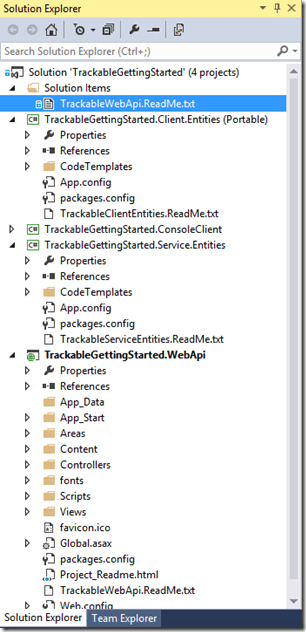
Once you click on one of these babies, you get a mulit-project Visual Studio solution. This in itself is an incredible time-saver.  All of the NuGet packages are there. All of the project references are correctly set. Customized T4 templates are inserted and ready to go.

WebApiSolutionExplorer

The next step is to reverse engineer an existing database into entities and mapping classes. For this aspect, we leverage the Entity Framework Power Tools. (I’m planning to replace this in the near future with the EF 6.1 Tools for Visual Studio, which also come with VS 2013 Update 2.)  The reason for this is that it’s easy to customize entity code-generation by modifying a set of T4 templates.  On the client side, the entities are data-binding friendly and they play nice with the change tracker. On the server side, the templates generate classes that are much simpler, without concern for change tracking or data binding. Because the classes are persistence ignorant POCO’s (Plain Old CLR Objects), they’re ideal for use with Domain Driven Design Patterns (such as Repository and Unit of Work).

What this separation between client and server entities means is that the service does not have to worry about how change tracking takes place on the client.  All it cares about are two little properties: TrackingState (Unchanged, Modified, Added or Deleted) and ModifiedProperties (which properties have been changed). This is essentially what sets Trackable Entities apart from its evil twin, Self-Tracking Entities.  In order to apply changes to an Entity Framework DbContext, we don’t need to know anything about original property values, and all the change-tracking logic is encapsulated on the client, by adding the Trackable Entities Client NuGet package.

As a consequence there’s nothing to stop a JavaScript client, such as a SPA, or Single Page Application, from setting tracking state on entities and sending them off to a RESTful web service that uses Trackable Entities to perform batch updates.  Nice.

Then there’s hassle-free serialization. Trackable Entities sets everything up so you don’t have to worry about tweaking configuration settings or attaching the correct attributes.  This is worth mentioning because by default Entity Framework favors the least common use-case, which a client communicating directly with a database via EF.  DbContext is configured to use dynamic proxies for lazy loading, and these are not serializable.  Trackable Entities, on the other hand, provides a DbContext class with proxy generation turned off, and entities are decorated with both JsonObject and DataContract attributes, so that cyclical references do not break the serializer.

The other thing that makes n-tier just plain hard is the Entity Framework API for persisting changes in a disconnected fashion.  Julie Lerman and Rowan Miller discuss this in their excellent DbContext book, but it remains a complex problem to solve, especially when it comes to dealing with many-to-many relationships.  But this is where Trackable Entities shines.  All you have to do is write one line of code:  DbContext.ApplyChanges.  Pass in one or more entities, and Trackable Entities will walk the entire object graph in all directions, correctly setting entity state.  It uses recursion to traverse the graph and can apply a change several layers deep.  And here’s the kicker: it knows how to deal with many-to-many relationships.  This is a feature I added to version 2.0, and it uses the metadata workspace to reflect over the conceptual model and add or remove entities from the M-M relationship without inserting or deleting the entities themselves.

Another cool feature I added to v 2.0 is an extension method to DbContext called LoadRelatedEntities.  This is one I’m especially proud of.  It obviates the need to call LoadProperty on ObjectContext, which can be quite inefficient and can only be executed synchronously.  The reason you may need to load properties is to set reference properties on added entities.  For example, you create a new order with details, and you want to return the inserted order with Customer set on each order and Product set on each order detail.  What makes LoadRelatedEntities so gnarly (to use surfer-speak) is (a) it traverses the object graph, so you only have to call it once, (b) it fetches batches of entities by dynamically constructing Entity SQL statements, and (c) it can be executed asynchronously, utilizing EF 6’s async capabilities.

After performing updates, it is important to return updated entities to the client, so that entity properties are populated with database generated values, for example, identity keys and concurrency tokens.  The trick is knowing how to merge changes back into the original objects, when those objects do not contain any metadata concerning primary keys.  The solution is to use a unique identifier that allows you to correlate each updated entity to the corresponding original entity.  In v 2.0 I added a new MergeChanges method that does precisely this.  Now you can update a collection of entities bound to a data grid without affecting the order or messing up the data bindings.

There are separate installers for Visual Studio 2012 and 2013, with limited support for .NET 4.0.  The VS extension includes multi-project templates for both WCF and ASP.NET Web API, with item templates that provide both WCF service types and Web API controllers. And wherever possible operations and actions are asynchronous.

Lastly, the icing on the cake is full support for domain driven design with repository and unit of work patterns.  A separate template gives you a multi-project solution, with interfaces separated cleanly from implementation, so that you have complete independence from the underlying persistence framework, enabling you to future-proof your app against potential obsolescence and, should it become necessary, swap out EF for something else.

The beauty of Trackable Entities is that you get all this goodness for free, and you can accomplish in minutes what it would otherwise take hours or days to pull off.  To get started you can go through one of the Online Tutorials (Web API, WCF, or Repo / Unit of Work), or take a look at the Getting Started Video, to build an end-to-end n-tier application in no time with Trackable Entities, Entity Framework, and ASP.NET Web API or WCF.  Enjoy!

Posted in Technical | Tagged , , | 7 Comments

Trackable Entities – Now with Repository and Unit of Work

When I released v1.0 of my Trackable Entities Framework, it came with a lot of developer goodness: NuGet packages, Visual Studio project templates, a VSIX installer available from Visual Studio’s Extensions Gallery, Getting Started guides and a screencast. From the start I built in support for both ASP.NET Web API and Windows Communication Foundation (WCF) using either Visual Studio 2012 or 2013.

With inquires on the project discussion forum, and some prompting by my friend Long Le, who authored the Generic Unit of Work and Repository Framework, I decided to add support to my framework for using Repository and Unit of Work design patterns.  I’ve used these patterns for a number of years with an approach to application design called the Onion Architecture (first proposed by Jeffery Palermo).  The idea behind it is to use dependency injection with interfaces to loosely couple your service applications to infrastructure concerns, such as data access and logging, and in so doing, future-proof your application against technology obsolescence.

While we architects love design patterns and loose coupling, there is a price to pay, which is increased complexity and more moving parts.  With this also comes a temptation to do too much for the developer in order to reduce the level of complexity.  The result is a delicate balancing act, with trade-offs between ease of use and architectural soundness.  In particular, generic repositories that expose IQueryable for creating composable queries have been criticized as a lazy anti-pattern, because they can obscure the contract which a repository should represent between the domain objects and a data store.

To be fair, Long is refactoring his framework to alleviate some of these concerns, and adding a dependency to Trackable Entities to support change-tracking and batch updates across service boundaries.  For my part, I have chosen to implement a limited set of generic functions for internal use by separate repository classes, which provide a meaningful public-facing contract. This approach achieves a degree of code reuse, reducing the amount of code needing to be written by developers, while not protecting them too much from the complexities of implementing the repository and unit of work design patterns.

The way I try to help developers is with good tooling, documentation and samples. On the tooling side, I have incorporated multi-project Visual Studio templates into a VSIX installer that includes all the necessary NuGet packages.  Trackable Entities now includes a New Project template called “Trackable Web Api with Repository and Unit of Work”.
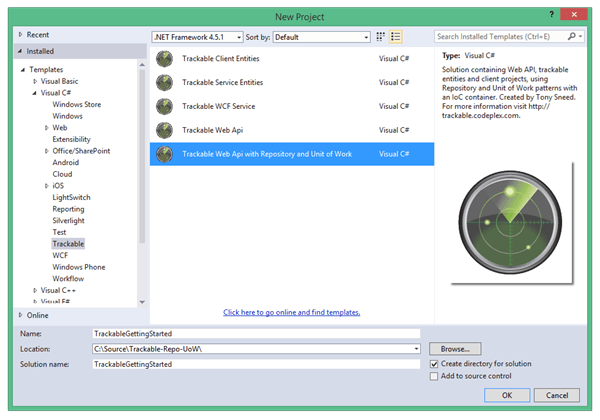
Repo-UoW-NewProject

Selecting this template will create a Visual Studio 2013 solution with 6 projects:

  1. ConsoleClient
  2. Client.Entities
  3. Service.Entities
  4. Service.EF
  5. Service.Persistence
  6. WebApi

The really cool thing about this template is that all the references between projects have been set, and all the NuGet packages have been installed from the VSIX package.  While there is a sample application you can download from the CodePlex project web site, the VS template provides a mostly blank slate from which to start building your n-tier application using Trackable Entities.  To guide you through this process, I have composed a Getting Started Guide for Trackable Entities with Repository and Unit of Work Patterns, which has step-by-step instructions with screen shots and code samples for creating an end-to-end solution with a .NET client that leverages ChangeTrackingCollection<T> for automatic change-tracking and batch updates to an ASP.NET Web API service, with inserts, updates and deletes performed within a single transaction and a single round-trip.

Another power feature of the Trackable Entities extension is a set of Visual Studio item templates for creating various pieces of the Repository and Unit of Work pattern.
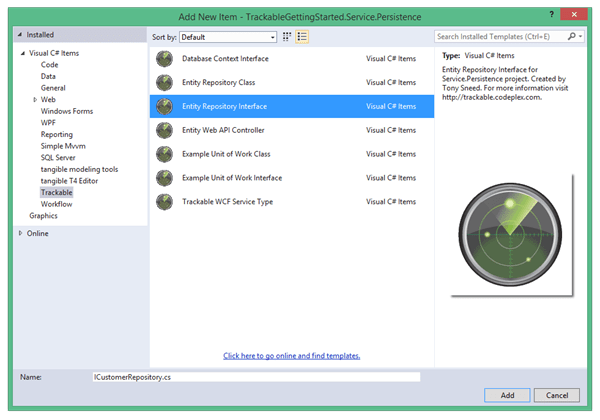
Entity-Repo-Interface

This screenshot shows six item templates related to Repository and Unit of Work.  There are three interface templates: Entity Repository Interface, Example Unit of Work Interface, and Database Context Interface.  And there are three class templates: Entity Repository Class, Example Unit of Work Class, and Entity Web API Controller.

These templates represent my decision to require a fair amount of work on the part of the developer, who will still need to define how the repository contracts should look and what operations should be allowed against the data store.  However, much of the repetitive boilerplate code is generated by the template, providing a greater degree of developer productivity, while serving as a learning tool on best practices for implementing these design patterns.

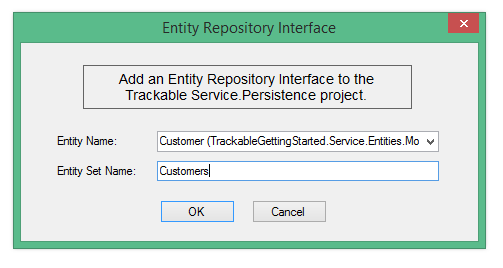
For example, the Service.Persistence project contains Repositories and UnitsOfWork folders for interfaces used by the Web API project to abstract away the Entity Framework.  When you add an “Entity Repository Interface”, you are presented with a wizard dialog showing all of the referenced trackable entities in a convenient drop down list.

Entity-Repo-ICustomer

This will generate a repository interface with a few basic operations.  These are asynchronous by default, but you can change them to synchronous ones if you prefer (in case you are using a data access API that does not support async.)

public interface ICustomerRepository : IRepository<Customer>, IRepositoryAsync<Customer>
{
    Task<IEnumerable<Customer>> GetCustomers();
    Task<Customer> GetCustomer(string id);
    Task<bool> DeleteCustomer(string id);
}

Selecting “Database Context Interface” will result in an interface that represents a DbContext-derived class to a concrete Entity Repository Class.

public interface INorthwindSlimContext
{
    IDbSet<Category> Categories { get; set; }
    IDbSet<Customer> Customers { get; set; }
    IDbSet<Order> Orders { get; set; }
    IDbSet<OrderDetail> OrderDetails { get; set; }
    IDbSet<Product> Products { get; set; }
}

The “Entity Repository Class” item template will generate a class that implements the corresponding repository interface and extends a lightweight generic Repository<TEntity> class for performing basic CRUD operations.  The Data Context Interface is injected into the constructor of the Entity Repository Class.

public class CustomerRepository : Repository<Customer>, ICustomerRepository
{
    private readonly INorthwindSlimContext _context;

    public CustomerRepository(INorthwindSlimContext context) :
        base(context as DbContext)
    {
        _context = context;
    }

    public async Task<IEnumerable<Customer>> GetCustomers()
    {
        IEnumerable<Customer> entities = await _context.Customers
            .ToListAsync();
        return entities;
    }

    public async Task<Customer> GetCustomer(string id)
    {
        Customer entity = await _context.Customers
            .SingleOrDefaultAsync(t => t.CustomerId == id);
        return entity;
    }

    public async Task<bool> DeleteCustomer(string id)
    {
        Customer entity = await GetCustomer(id);
        if (entity == null) return false;
        Set.Attach(entity);
        Set.Remove(entity);
        return true;
    }
}

Selecting “Example Unit of Work Class” gives you the outline of a class that implements an IUnitOfWork interface, injecting the necessary interfaces into the constructor, exposing repositories as properties, and calling SaveChanges in order to persist changes across one or more repositories.

public class NorthwindUnitOfWork : UnitOfWork, INorthwindUnitOfWork
{
    private readonly ICustomerRepository _customerRepository;
    private readonly IOrderRepository _orderRepository;

    public NorthwindUnitOfWork(INorthwindSlimContext context,
        ICustomerRepository customerRepository,
        IOrderRepository orderRepository) :
        base(context as DbContext)
    {
        _customerRepository = customerRepository;
        _orderRepository = orderRepository;
    }

    public ICustomerRepository CustomerRepository
    {
        get { return _customerRepository; }
    }

    public IOrderRepository OrderRepository
    {
        get { return _orderRepository; }
    }

    public override Task<int> SaveChangesAsync()
    {
        return base.SaveChangesAsync();
    }

    // Other methods elided for clarity
}

While these templates provide general guidance for implementing Repository and Unit of Work patterns, the “Entity Web API Controller” template will save a you a great deal of coding.  This template injects the Unit of Work interface and generates GET, PUT, POST and DELETE operations which use the interface for persistence.  Here is an excerpt of a generated controller class.

public class CustomerController : ApiController
{
    private readonly INorthwindUnitOfWork _unitOfWork;

    public CustomerController(INorthwindUnitOfWork unitOfWork)
    {
        _unitOfWork = unitOfWork;
    }

    // GET api/Customer
    [ResponseType(typeof(IEnumerable<Customer>))]
    public async Task<IHttpActionResult> GetCustomers()
    {
        IEnumerable<Customer> entities = await _unitOfWork.CustomerRepository.GetCustomers();
        return Ok(entities);
    }

    // GET api/Customer/5
    [ResponseType(typeof(Customer))]
    public async Task<IHttpActionResult> GetCustomer(string id)
    {
        Customer entity = await _unitOfWork.CustomerRepository.GetCustomer(id);
        if (entity == null)
        {
            return NotFound();
        }
        return Ok(entity);
    }

The WebApi project uses TinyIoC to resolve all the dependencies so that they are properly injected.  It contains a TinyIoCDependencyResolver, which implements IDependencyResolver and is assigned to HttpConfiguration.DependencyResolver in an IoCConfig class with a Register method that is called from Global.asax.cs.  The Register method is where you register types with the IoC container and specify a lifetime model that is tied to each Http request.

public static class IoCConfig
{
    public static void Register(HttpConfiguration config)
    {
        // Get IoC container
        var container = TinyIoCContainer.Current;

        // Register context, unit of work and repos with per request lifetime
        container.Register<INorthwindSlimContext, NorthwindSlimContext>().AsPerRequestSingleton();
        container.Register<INorthwindUnitOfWork, NorthwindUnitOfWork>().AsPerRequestSingleton();
        container.Register<ICustomerRepository, CustomerRepository>().AsPerRequestSingleton();
        container.Register<IOrderRepository, OrderRepository>().AsPerRequestSingleton();

        // Set Web API dep resolver
        config.DependencyResolver = new TinyIoCDependencyResolver(container);
    }
}

Another cool thing is that the WebApi project installs the Web API Help Page and Test Client packages, so that running the WebApi project shows an API link that displays all the Web API operations.
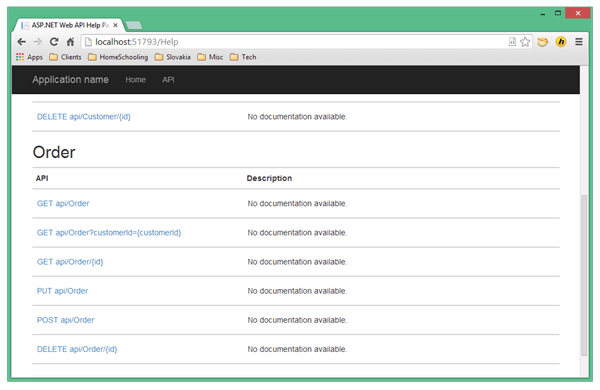
Web-Api-Help

Clicking on an operation will show a page with JSON and XML response formats, as well as a “Test API” button, which you can click to invoke the operation.  For example, invoking GET api/Order?customerid={customerid} will return orders for a specific customer.
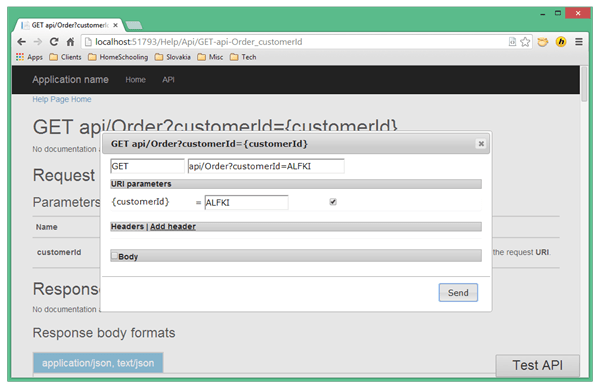
Web-Api-Help-Cust-Orders

The web Test Client will let you know if your service is up and running, but to see change-tracking in action, you’ll want to run the ConsoleClient app, which contains sample code using a service that updates the NorthwindSlim sample database.  Uncommenting code in Program.Main and setting the service port number will let you retrieve entities, as well as create, update and delete graphs of entities.  The client-side change-tracker (deployed in a portable NuGet package) will set tracking state on entities automatically as their properties are set (via INotifyPropertyChanged), or when they are added or removed from a ChangeTrackingCollection (which extends ObservableCollection).  The Client.Entities project will contain classes that implement the ITrackable interface and are reverse engineered from a database.  Child properties on entities, such as Order.OrderDetails, surface as ChangeTrackingCollections, so that child entities are automatically change-tracked.

// Start change-tracking the order
var changeTracker = new ChangeTrackingCollection<Order>(createdOrder);

// Modify order details
createdOrder.OrderDetails[0].UnitPrice++;
createdOrder.OrderDetails.RemoveAt(1);
createdOrder.OrderDetails.Add(new OrderDetail
{
    OrderId = createdOrder.OrderId,
    ProductId = 3,
    Quantity = 15,
    UnitPrice = 30
});

// Submit changes
var changedOrder = changeTracker.GetChanges().SingleOrDefault();
var updatedOrder = UpdateOrder(client, changedOrder);

// Merge changes
changeTracker.MergeChanges(ref createdOrder, updatedOrder);
Console.WriteLine("Updated order:");
PrintOrderWithDetails(createdOrder);

This code change tracks an order as details are modified, removed, added, or left unchanged. GetChanges returns just the entities that have changed, including deleted items that have been cached. This avoids sending unchanged items to the server and wasting network bandwidth. Updated entities are returned from the service, so that database-generated values are included (such as identity and concurrency values). MergeChanges merges changes and unchanged entities back together.  In contrast with now deprecated EF Self-Tracking Entities, Trackable Entities are extremely lightweight, containing only two properties: TrackingState (an enum) and ModifiedProperties (a string array used for partial updates). Because merging changes is explicit (with unchanged items merged back into the change set), there is no need for an entity dictionary, and no need for a key property attributes on on each entity.  Aside from change-state, entities can therefore remain entirely ignorant of persistence concerns.

If using Repository and Unit of Work patterns is overkill for your scenario, you can still use the “Trackable Web API” project template, which is quite a bit easier to set up and uses custom T4 templates with MVC scaffolding for generating Api Controllers with Entity Framework code for persistence.  For information on how to do that, just refer to the Trackable Web API Getting Started Guide and screencast.  (If you’re using WCF, you can refer to the Trackable WCF Getting Started Guide.)  Enjoy!

Posted in Technical | Tagged , , | 3 Comments

Android and iOS Development with Simple MVVM Toolkit? Yes you can!

Note: This is Part 1 of a three part series.  This post deals with iOS development. Part 2 will delve into Android development, and Part 3 will discuss how to create a Simple Mvvm Portable Library with code that can be shared across multiple UI platforms (both Microsoft and non-Microsoft).

In the three years since its first release, my Simple MVVM Toolkit has garnered quite a bit of interest from the developer community and has had over 41,000 downloads (including CodePlex, Visual Studio Extensions Gallery, and NuGet).  My goal in creating the toolkit was simplicity in design, a rich feature set, clear documentation, plenty of samples, and an easy-to-use installer with good Visual Studio integration, including project templates and code snippets.  Since I wrote a comparison with MVVM Light, the list of differences has narrowed since Laurent added more features and has provided an installer, but the two toolkits still differ in terms of philosophy and approach. Like anything in life, it comes down to a matter of preference and personal taste.

That is, until now. Smile  Today you can use Simple MVVM Toolkit to build iOS and Android applications using the Xamarin extension to Visual Studio.  Not only that, but my toolkit includes project templates for creating Portable Class Libraries with models, view-models and other common code that can be shared across multiple UI platforms, including WPF, Silverlight, Windows Store, Windows Phone, iOS and Android.  What has made this possible is that Microsoft removed the platform restriction on NuGet packages and PCL’s can now target iOS and Android via Xamarin. (I’ll explore in depth how to use Simple MVVM Toolkit to create portable libraries in a future blog post.)

Before getting started with iOS development, you’ll probably want to go buy a Mac.  You could theoretically create a Mac OSX virtual machine on a PC, although Apple only approves virtualization on its own hardware.  Another alternative is to use a cloud-based Mac, but that could be slow, depending on your Internet connection, and isn’t free.  If you have the funds, investing in a real Mac is a great idea, and the Mac Mini starts at just $599.  I bought a top-end MacBook Air, and I run Windows 8.1 in a virtual machine on it using Parallels.  Not only do I enjoy extended battery life and superbly designed hardware, but running Windows in a VM lets me switch images, or install a new one should it become corrupted. And the solid state drive is several times faster than a SATA drive, although I still use an external SATA with a Thunderbolt cable for storing movies and other media.

Next you’ll need to install two versions of Xamarin: one on the Mac, and the other on Windows.  With both of these you’ll get Xamarin Studio, but with Windows you’ll also get Visual Studio integration.  The catch is that VS integration requires a Business Edition license, which is not free.  Nevertheless, you can start with a 30 day trial and go from there.  (MSDN subscribers get a 90 day trial and discount on the retail price, as well as exclusive training content.)  Speaking of training, be sure to check out sessions by Mark Smith on iOS and Android development with Xamarin and C#.  The view the videos, just sign up for a free 14 day trial using the promo code: SNEED-14.

Finally, install Simple MVVM Toolkit v5.5 (or later). You can get it right from within Visual Studio 2013, by selecting Tools, Extensions and Updates, clicking the Online tab, and searching for simplemvvm.  Or you can visit the download page of the Simple Mvvm Toolkit CodePlex site, where you can get the VSIX installer and run it, as well as zip files containing the samples and source code.  Note that VS 2013 Profession Edition or higher is required – as Xamarin does not support VS Express.  (There is also a separate installer for VS 2012 available on the VS Extensions Gallery which you can use with the Pro Edition, but it does not [yet] have support for Xamarin.)  While it is possible to use Xamarin Studio instead of Visual Studio, and simply reference the Simple MVVM Toolkit NuGet package, the only way to get the predefined Simple Mvvm project templates is to use VS Pro Edition together with Xamarin for Visual Studio Business Edition (licensed or free trial).

SimpleMvvm-VS-Ext

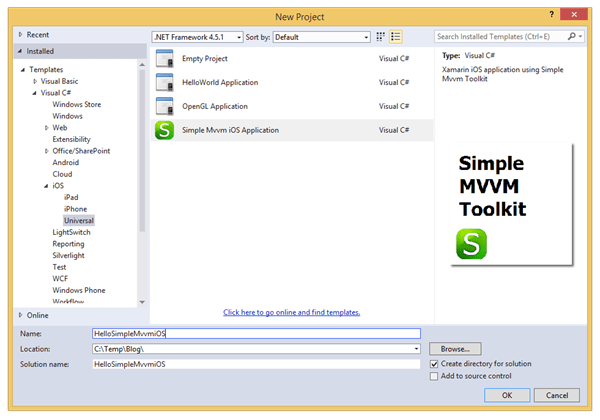
After installing Xamarin and Simple MVVM Toolkit, all you have to do is create a new Simple Mvvm iOS Application, by adding a new project, then selecting a project type of Visual C#, iOS, Universal, and choosing Simple Mvvm iOS Application (you will also see it under the general Visual C# category).

SimpleMvvm-iOS

You will then be prompted to connect to a Xamarin.iOS Build Host, running on a Mac (local or networked).

iOS-BuildHost

What you get is a fully functioning iOS application for both iPhone and iPad using the Simple MVVM Toolkit! Just select iPhoneSimulator as your configuration and press F5.  That will open up the sample app on your Mac in the iPhone simulator.

SimpleMvvm-iOS-Mac

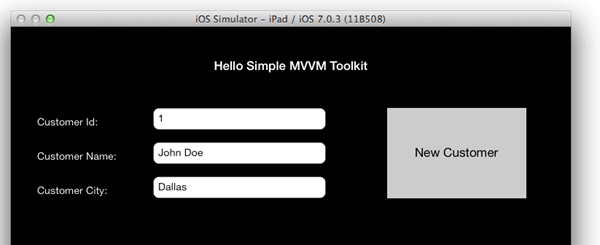
To see the same app running in the iPad simulator, open the solution file (.sln) using Xamarin Studio for the Mac (I didn’t see an iPad configuration option in Visual Studio), select Debug / iPad iOS 7.0, and click the Run button.

SimpleMvvm-iPad-Mac

There is a lot going on under the covers to make all this happen.  First, there’s the visual layout.  I created the layout using storyboards in Xamarin Studio for the Mac.  For that I had to select “Check for Updates” from the Xamarin Studio menu and get the latest version from the Alpha channel (eventually this feature will be released on the Stable channel).  I started with a Single View App based on the Universal Storyboard template.

SimpleMvvm-Univ-Storyboard

This allowed me to create two storyboards, one for iPhone and the other for iPad.  The visual designer is quite good – I could drag items from the toolbox and set properties.  Setting the Name property on an element results in a code-generated property representing the element in the view controller code-behind class, which is needed to wire up data binding.

SimpleMvvm-Storyboard-Designer

To be able to bind UI elements to view model properties, there are a number of steps that need to be performed.  Data binding takes place using classes provided by the MvvmCross “Core” NuGet package.  Luckily, the Simple Mvvm template already contains most of the necessary code, including a BindingSetup class for initializing the IOC container and registering the binding builder, as well as code in the view controller class for setting the view model as the DataContext.  The only code you’ll need to write is for binding each element to a corresponding view model property from within the ViewDidLoad method.

public override void ViewDidLoad()
{
    base.ViewDidLoad();

    // Bindings setup helper
    var bindingSet = this.CreateBindingSet<SimpleMvvm_iOSViewController, CustomerViewModel>();

    // Properties
    if (BannerLabel_iPhone != null)
        bindingSet.Bind(BannerLabel_iPhone).To(vm => vm.BannerText);

    // Command
    if (NewCustomerButton_iPhone != null)
        bindingSet.Bind(NewCustomerButton_iPhone).To(vm => vm.NewCustomerCommand);

    // Apply bindings
    bindingSet.Apply();
}

In case you don’t have the Xamarin Business Edition with VS support, you will need to use the Mac version of Xamarin Studio (the Windows version of Xamarin Studio does not currently support iOS development).  Then you will need to add the Simple Mvvm Toolkit and MvvmCross Core NuGet packages (first enable the NuGet add-in for Xamarin Studio on the Mac), and manually copy code from the Simple Mvvm iOS template.

In my next blog post I’ll dive into using Simple MVVM Toolkit for developing Android applications using Xamarin.  Before long, you’ll be on your way to building that next killer app for iOS, Android and Windows.  All the best!

Posted in Technical | Tagged | 9 Comments

Trackable Entities versus Self-Tracking Entities

In this blog post I’d like to perform an in-depth comparison between my own Trackable Entities framework and the now deprecated Self-Tracking Entities, written by the Entity Framework team at Microsoft. Because STE’s were discontinued with EF v4, there’s the mistaken notion that tracking entity state is generally a bad idea. Nothing could be further from the truth.

Consider the following scenario. You have an Order entity with related OrderDetails. You want to create, update and delete some of the OrderDetails within the same transaction. If one of the updates fails, for example by not specifying a valid ProductId, none of the other updates should succeed, and the entire transaction should be rolled back.  This means you need to pass all the details (added, modified, deleted) to the same service operation. Without tracking entity state, you would have to pass each set of details separately. For example:

public Order PutOrder(Order order, List<OrderDetail> addedDetails,
    List<OrderDetail> modifiedDetails, List<OrderDetail> deletedDetails)
{
    // TODO: Save changes
}

On the client you still have to keep track of which details were added, modified and deleted, so that you can group them accordingly. Then on the server you have to figure out how best to return inserted and updated details to the client with database-generated identity and concurrency values, probably by retrieving the updated order with details from the database.

Change-tracking solves this problem.  In fact, this is precisely how WCF Data Services, an implementation of the OData spec, performs batch updates.  There is a client-side change-tracker which sets entity state as you call methods on a context object (AddObject, UpdateObject, DeleteObject, SetLink), so that updates can be batched when changes are saved.  In fact, WCF Data Services is one of the technologies recommended by Microsoft as a replacement for STE’s.  Nevertheless, OData is not necessarily going to give you as much control over the API surface of your web services. While it is possible to expose an OData service via ASP.NET Web API controllers, the overall intent of OData is to create queryable syndication data feeds – using OData just to get change-tracking and batch updates may be overkill for most n-tier scenarios.

So where did Self-Tracking Entities go wrong?

To answer this question, let’s take a look at code produced by the STE template.

[DataContract(IsReference = true)]
[KnownType(typeof(Category))]
[KnownType(typeof(OrderDetail))]
public partial class Product : IObjectWithChangeTracker, INotifyPropertyChanged
{
    [DataMember]
    public string ProductName
    {
        get { return _productName; }
        set
        {
            if (_productName != value)
            {
                _productName = value;
                OnPropertyChanged("ProductName");
            }
        }
    }
    private string _productName;

    [DataMember]
    public TrackableCollection<OrderDetail> OrderDetails
    {
        get
        {
            if (_orderDetails == null)
            {
                _orderDetails = new TrackableCollection<OrderDetail>();
                _orderDetails.CollectionChanged += FixupOrderDetails;
            }
            return _orderDetails;
        }
        set
        {
            if (!ReferenceEquals(_orderDetails, value))
            {
                if (ChangeTracker.ChangeTrackingEnabled)
                {
                    throw new InvalidOperationException("Cannot set the FixupChangeTrackingCollection when ChangeTracking is enabled");
                }
                if (_orderDetails != null)
                {
                    _orderDetails.CollectionChanged -= FixupOrderDetails;
                }
                _orderDetails = value;
                if (_orderDetails != null)
                {
                    _orderDetails.CollectionChanged += FixupOrderDetails;
                }
                OnNavigationPropertyChanged("OrderDetails");
            }
        }
    }
    private TrackableCollection<OrderDetail> _orderDetails;

    [DataMember]
    public ObjectChangeTracker ChangeTracker
    {
        get
        {
            if (_changeTracker == null)
            {
                _changeTracker = new ObjectChangeTracker();
                _changeTracker.ObjectStateChanging += HandleObjectStateChanging;
            }
            return _changeTracker;
        }
        set
        {
            if (_changeTracker != null)
            {
                _changeTracker.ObjectStateChanging -= HandleObjectStateChanging;
            }
            _changeTracker = value;
            if (_changeTracker != null)
            {
                _changeTracker.ObjectStateChanging += HandleObjectStateChanging;
            }
        }
    }
    private ObjectChangeTracker _changeTracker;

    // Change Tracking Code ...

    // Serialization Code ...

    // Association Fixup Code ...
}

I omitted most of the other properties, but altogether the Product class ends up with over 350 lines of code!  And most of that is plumbing code handling various aspects of change-tracking and serialization. But it gets worse. You can see that Product implements an interface called IObjectWithChangeTracker, which has a ChangeTracker property of type ObjectChangeTracker, which in turn has properties for ObjectState, ObjectsRemovedFromCollectionProperties, ObjectsAddedToCollectionProperties, OriginalValues and ExtendedProperties.

The sad part about all this is that the extra baggage added by these properties and methods is almost entirely unnecessary.  There’s no need to attach a change tracker to each entity, nor should it be necessary to insert change-tracking and serialization code into each entity.  Those things belong elsewhere. In short, STE’s violate the principle of Separation of Concerns (SoC).

Why were STE’s designed this way?  There are probably several reasons. For one, they modeled STE’s after EF-specific entities, which implement IEntityWithChangeTracker.  Second, NuGet did not exist at that time, making it difficult to deploy an assembly with a client-side change-tracker that did not depend on the Entity Framework, which forced them to use T4 code generation instead. Third, they generated the same entities for both client and server, with server code that did not belong on the client and client code that did not belong on the server. Fourth, they were still tied to a Model First approach with an EDMX file, and because Code First was not yet fully baked, they had to take Independent Associations into account. Fifth, they brought over original property values rather than requiring the use of row versions for concurrency. And sixth, the client-side code generally is too tightly coupled with the server-side code that reads the entity state in order to perform updates.

In addition, the API was rather rough around the edges.  Here is list of complaints I had at the time:

  • No GetChanges method to obtain just the entities that had changed.
  • Items removed from child collections were not automatically marked as deleted – you had to call MarkAsDeleted explicitly.
  • Marking a parent as deleted did not mark child entities as deleted – you had to do it manually.
  • AcceptChanges was not recursive – you had to call it on both parent and child entities.

The good news is that these architectural and technical flaws are avoidable.  Some of them could have been avoided at the time, and others can now be avoided because we have additional options. For example, Code First is now mature, and we have NuGet for distributing a client assembly that is not tied to Entity Framework. We still have T4 templates, but they can be used more narrowly for generating separate client and server entities.  In addition, it is now possible to leverage other tools for increasing developer productivity, such as the EF Power Tools (although they need an overhaul), and scaffolding for ASP.NET Web API.

So how does Trackable Entities avoid the pitfalls that doomed STE’s?

Before answering this question, I would like to point out that Trackable Entities actually predates STE’s and EF4. Back in 2008, I published an MSDN Magazine article which provided a solution to the need for change-tracking entities across service boundaries in a way that does not couple entities to any particular persistence stack.  (I even showed how it could be done with both EF and LINQ to SQL.)  Then in 2010 I updated my solution with Trackable DTO’s and T4 templates that generated client-entities based on WCF metadata. My Trackable Entities project represents a further evolution that is not coupled to any web service stack (be it ASP.NET Web API or Windows Communication Foundation).

Now to answer the question. Architecturally, Trackable Entities adheres to the principle of SoC by placing all change-tracking logic in a class called ChangeTrackingCollection<T>, which extends ObservableCollection<T> (for data-binding friendliness).  The change tracker marks entities as Added, Modified or Deleted (deleted items are also cached). To track some items, just add them to the collection. Simple! Smile

The client assembly is a Portable Class Library (so it runs on just about any client) and is deployed as a NuGet package. Its only dependency is on a TrackableEntities.Common package, which contains the ITrackable interface, and on Json.Net, for efficient serialization.  Here is the client version of the Product entity (with just ProjectName and OrderDetails properties – just like the STE sample I showed earlier). Aside from properties for TrackingState and ModifiedProperties, there’s no extra code for change-tracking or serialization. ModelBase only contains an implementation of INotifyPropertyChanged, and this class is not generated because it’s located in the client library referenced via NuGet.

[JsonObject(IsReference = true)]
[DataContract(IsReference = true, Namespace = "http://schemas.datacontract.org/2004/07/TrackableEntities.Models")]
public partial class Product : ModelBase<Product>, ITrackable
{
    public Product()
    {
        this.OrderDetails = new ChangeTrackingCollection<OrderDetail>();
    }

    [DataMember]
    public string ProductName
    {
        get { return _ProductName; }
        set
        {
            if (value == _ProductName) return;
            _ProductName = value;
            NotifyPropertyChanged(m => m.ProductName);
        }
    }
    private string _ProductName;

    [DataMember]
    public ChangeTrackingCollection<OrderDetail> OrderDetails
    {
        get { return _OrderDetails; }
        set
        {
            if (Equals(value, _OrderDetails)) return;
            _OrderDetails = value;
            NotifyPropertyChanged(m => m.OrderDetails);
        }
    }
    private ChangeTrackingCollection<OrderDetail> _OrderDetails;

    [DataMember]
    public ICollection<string> ModifiedProperties { get; set; }

    [DataMember]
    public TrackingState TrackingState { get; set; }
}

Another way that Trackable Entities achieves Separation of Concerns is by providing separate T4 templates for client and server entity generation. Client-side entities automatically track changes to client entities and implement INotifyPropertyChanged, but on the server there’s no need for such things. Here is the same Product entity generated for the server.

[JsonObject(IsReference = true)]
[DataContract(IsReference = true, Namespace = "http://schemas.datacontract.org/2004/07/TrackableEntities.Models")]
public partial class Product : ITrackable
{
    public Product()
    {
        this.OrderDetails = new List<OrderDetail>();
    }

    [DataMember]
    public string ProductName { get; set; }
    [DataMember]
    public List<OrderDetail> OrderDetails { get; set; }

    [DataMember]
    public TrackingState TrackingState { get; set; }
    [DataMember]
    public ICollection<string> ModifiedProperties { get; set; }
}

As you can see, there is nothing related to EF and nothing that would require tight coupling on the client. TrackingState is simply an enum and is serialized (Json or Xml) as an Integer. ModifiedProperties is represented as a collection of strings and is only present on modified entities.

On the server things are also much simpler, and everything is based on Code First, so there’s no EDMX file to contend with.  There is an ApplyChanges method you call on your DbContext-derived class, which recursively walks the object graph, setting EntityState by reading each entity’s TrackingState. Then there’s an AcceptChanges method which recursively sets entities to an Unchanged state before they are returned to the client. In total, there are just two public methods with two private helper methods and about 100 lines of code. That’s it!  In contrast, STE’s generate server-side code with 28 methods, 4 helper classes and over 1200 lines of code.

I hope this post helps developers get past any aversion they might have to change-tracking from having been burned by STE’s.  One of the alternatives to STE’s recommended by Microsoft is “Entity Framework APIs,” where they refer to an excellent book on DbContext by Julie Lerman and Rowan Miller.  But then they issue the warning that “this is a complex problem to solve” and steer you back to WCF Data Services.  I would heartily agree that it is a complex problem to solve, but it has been solved! So instead of trying to re-invent the wheel, I urge you (at the risk of sounding self-serving) to give my Trackable Entities a try. Smile

Before closing out, I’d like to mention that Trackable Entities is not just a set of NuGet packages. I’ve deployed it to the Visual Studio Gallery as extensions to both VS 2012 and VS 2013. There is also a Getting Started guide and accompanying screencast. And both ASP.NET Web API and WCF are supported.  What you get is a set of multi-project templates that spin up end-to-end solutions with templates that leverage scaffolding (for ASP.NET Web API), or provide a VS item template (for WCF), and give you service operations that handle all the CRUD. Cheers!

Posted in Technical | Tagged | 48 Comments